
How to Switch POS Software Without Losing Your Product and Customer Data
Table of ContentsTap to expand
Switching POS software can solve frustrating problems: slow checkout, unreliable stock counts, limited reporting, or customer records scattered across spreadsheets. But one worry often delays the decision: “What happens to all the product and customer data we already have?”
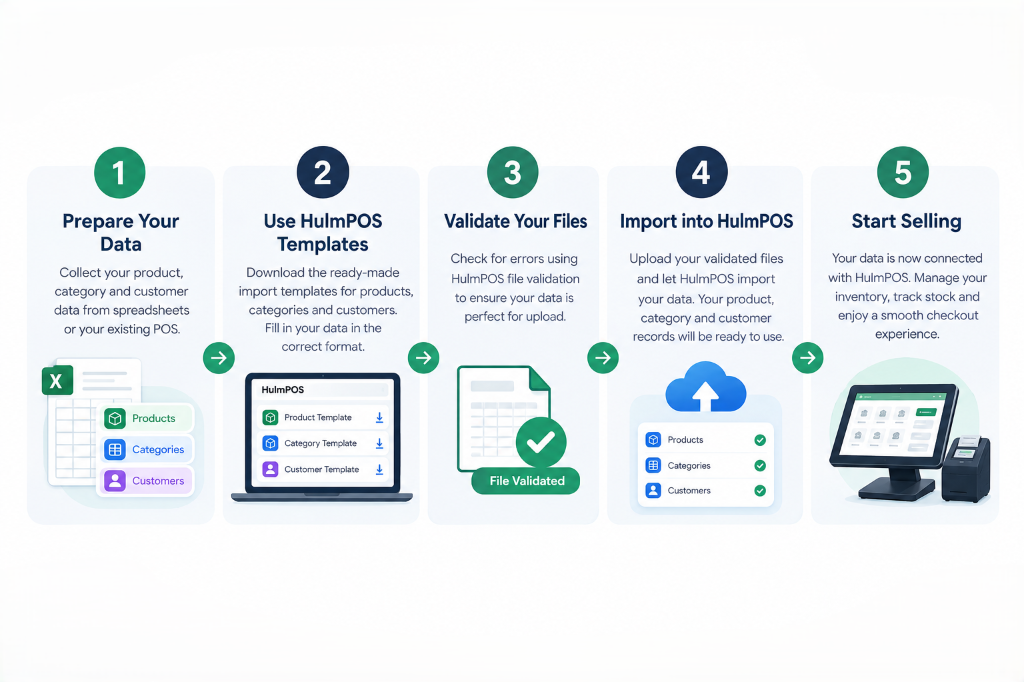
A rushed migration can create duplicate products, incorrect opening stock, missing phone numbers, or customer records that no longer match purchase history. The good news is that you can reduce these risks with a planned, tested process. This guide explains how to switch POS software without losing data, what to check before going live, and how HulmPOS’s product and customer import tools can help make the transition more manageable.
What data should you migrate when changing POS systems?
Start by listing the information your business actually needs in the new system. Do not assume every record can be transferred automatically: fields and migration options differ between POS platforms.
- Product catalogue: product names, SKUs, barcodes, categories, variants, selling prices, and cost prices where supported.
- Inventory: current quantities by branch or location, plus any stock adjustments that need to be recorded separately.
- Customer profiles: names, phone numbers, email addresses, and other fields supported by the destination system.
- Sales and financial history: receipts, returns, payment records, tax details, and outstanding balances, if applicable.
- Operational setup: branches, user permissions, tax settings, receipt formats, and hardware configuration.
How to transfer POS data securely without losing records
1. Audit your current data before exporting
Review your product list and customer directory before moving anything. Look for duplicate SKUs, missing barcodes, inconsistent category names, old products, invalid phone numbers, and blank prices. Decide which inactive records must be retained and which can be archived.
For example, if the same item appears as “Blue Jeans 32” and “Blue Jean - 32,” your new system may treat them as separate products unless you standardise the records first. Keep a copy of the original data so you can investigate discrepancies later.
2. Export and securely back up the source data
Export the available records from your current POS in its supported format, commonly CSV or Excel. Save separate, clearly named files for products, customers, stock, and transactions where available. Keep an untouched original backup and a working copy for cleanup.
3. Match columns to the new POS import template
Different systems use different field names and formats. A source column called “Item Code” may need to map to “SKU”; “Mobile” may map to “Phone.” Download the destination system’s current template and map each field deliberately rather than guessing.
Check number formats, date formats, category names, required fields, and whether barcodes or SKUs must be unique. Preserve leading zeros in codes and phone numbers. Do not place customer data into product fields or combine multiple values in one column unless the template requires it.
4. Import a small test batch first
Before importing thousands of records, test a representative sample: products with variants, barcodes, different prices, and several customer profiles. Review any import errors and correct the working file. If the system offers validation or an error report, use it before proceeding.
A successful upload message is not enough on its own. Open the imported records and verify that names, prices, categories, contact details, and identifiers landed in the correct fields.
5. Reconcile opening stock and customer records
Compare source and destination totals. Count the number of products and customers exported, imported, rejected, and duplicated. For inventory, compare quantities by branch and by selected high-value or fast-moving products. Check that each barcode scans the intended item and that a test sale reduces stock correctly.
Imagine a shop has 850 products and 120 units of a popular item in its old system. After import, the product count should be explainable, and the new stock quantity should match the agreed cut-off count—not simply look plausible. Record any intentional exclusions or adjustments.
6. Plan a cut-off, train staff, and keep the old records available
Choose a low-traffic time for the final migration. Decide when the old POS stops accepting transactions and how sales during the transition will be recorded. Avoid editing the same product or customer list in two systems at once; that creates conflicting versions.
A practical POS migration checklist
- Exported and backed up products, customers, and other required records
- Reviewed duplicates, missing fields, SKUs, barcodes, and category names
- Confirmed which historical transactions and balances can be migrated
- Mapped source columns to the new POS template
- Test-imported sample records and reviewed error reports
- Reconciled product counts, customer counts, and opening stock
How HulmPOS can simplify the move
HulmPOS provides product, category, and customer import/export workflows, with downloadable templates and file-format validation to help businesses prepare records for upload. Its product catalogue, inventory tracking, and customer management bring these day-to-day records into a connected POS workflow. That can reduce the need to rebuild every product and customer entry manually.
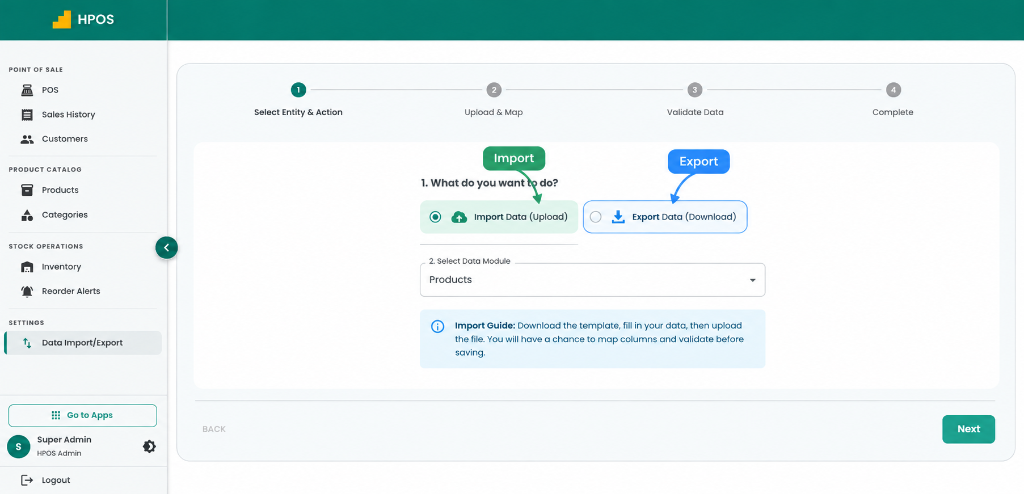
For a retail business moving from spreadsheets or another POS, the practical starting point is to prepare the catalogue and customer data, use the appropriate HulmPOS templates, and validate the imported records before live checkout. Explore the HulmPOS retail POS features to see how product management, stock tracking, and checkout fit together.
Frequently asked questions
Ans. Export your data from the old POS, keep an untouched backup, clean and map the fields to the new system’s template, and test a small import first. Restrict access to customer files and reconcile the imported records before going live.
Ans. Not always. Historical orders, returns, payment records, and customer balances depend on what both systems support. Confirm the available migration methods with both providers and retain secure access to old records if some data cannot be imported.
Ans. Back up first, standardise SKUs and barcodes, map fields carefully, test a sample import, review error reports, reconcile stock and customer totals, and plan a clear transaction cut-off before launch.
Ans. Export the customer directory, match fields such as name, phone, and email to the new system’s template, remove or resolve duplicates, and test the import. Verify a sample of profiles after upload and confirm how purchase history will be handled.
Ans. Choose a POS that supports a clear import process, documented templates, validation, and the records your business needs to move. HulmPOS supports product, category, and customer imports/exports; confirm with its team whether your historical transactions and other specialised records are supported.
Make your next POS switch a controlled transition
You do not need to treat migration as a leap of faith. Audit the data, keep a backup, test imports, reconcile stock and customer records, and agree on a cut-off before your team starts selling in the new system.
Planning to switch? Talk to Hulm about your data migration and confirm what can be transferred from your current POS. You can also review HulmPOS pricing and plans before deciding on the next step.
Upgrade Your Business with Hulm POS
Designed for speed, simplicity, and multi-location scalability. Start ringing up sales in minutes.
Start Your Free Trial
 WhatsApp